Overview
EdgeDeck is a full-screen FPV telemetry dashboard and session logger for a RadioMaster TX16S-style 480x272 color screen, EdgeTX, ExpressLRS, and Betaflight.
It is designed for the moments when the radio screen is useful: before launch, between packs, after landing, during recovery, and when reviewing how a spot behaved. During actual FPV flight, the pilot is usually in goggles, so EdgeDeck also uses haptic, sound, and optional voice alerts for the things that need attention in the air.
Requirements
- EdgeTX 2.11 or newer.
- A color-screen RadioMaster TX16S-style radio.
- ExpressLRS transmitter module and receiver with telemetry enabled.
- Betaflight sending CRSF telemetry.
- Sensors discovered on the radio with the model powered on.
Install
-
Open the radio SD card using USB storage mode or a card reader.
-
Copy the
EdgeDeckfolder into the SD card’s/WIDGETS/folder. -
The final radio SD-card path should look like this:
/WIDGETS/EdgeDeck/main.lua /WIDGETS/EdgeDeck/qrgen.lua -
Reinsert the SD card or exit USB storage mode.
-
On the radio, long-press a screen.
-
Choose Edit.
-
Tap an empty widget zone.
-
Select EdgeDeck.
-
For the full five-tab dashboard, place it in a full-screen widget zone.
If EdgeDeck is placed in a smaller zone, it automatically switches to a compact focus view with the most important values.
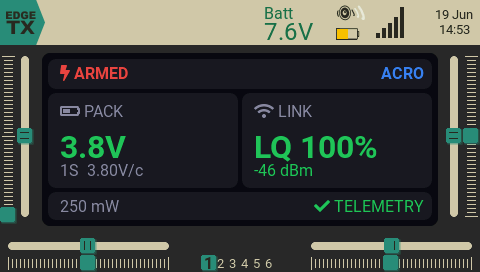
For upgrades, copy the new EdgeDeck folder over /WIDGETS/EdgeDeck/. You can leave runtime files such as sessions.log and gps_last.txt in place.
Only the EdgeDeck folder is needed on the radio. Repository files such as README.md, examples/, and .github/ do not need to be copied to the SD card.
Telemetry Setup
Power the model, then run sensor discovery on the radio:
Model Setup -> Telemetry -> Discover new sensorsEdgeDeck reads the common CRSF/ELRS sensors below. You do not need every sensor for the widget to work. Missing values are shown as -- or 0, and the rest of the dashboard keeps running.
| What EdgeDeck shows | Sensor names it looks for |
|---|---|
| Uplink link quality | RQly |
| Downlink link quality | TQly |
| RSSI | 1RSS, 2RSS, or RSSI |
| TX power | TPWR |
| Packet rate | RFMD |
| Current | Curr |
| mAh used | Capa |
| Pack voltage | RxBt |
| Flight mode / arm state | FM |
| GPS satellites | Sats, Sat, or GPS Sats |
| GPS coordinates | GPS or Lat/Lon variants |
| GPS altitude | GAlt or Alt |
| GPS speed | GSpd, Gspd, or GPS Speed |
| GPS distance | Dist or GPS Dist |
Betaflight Mode Sensor
For Betaflight, native CRSF telemetry is recommended because it gives EdgeDeck the FM flight-mode sensor. That lets the widget show the mode and detect armed/disarmed state more accurately.
In Betaflight Configurator, open the CLI and run:
set crsf_telemetry_mode = NATIVE
save
After the flight controller reboots, discover sensors again on the radio.
If FM is not available, EdgeDeck still works. It falls back to current draw and treats the craft as armed when current rises above 1 A. In that fallback mode, the arm state can be less precise and the mode label may show ----.
Screen Tabs
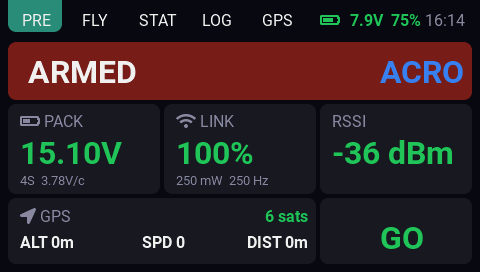
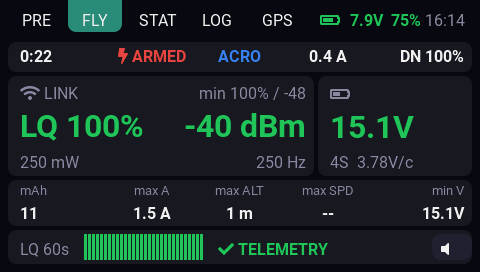
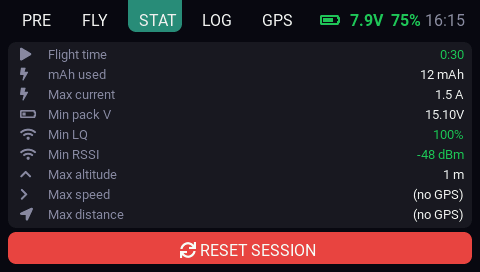
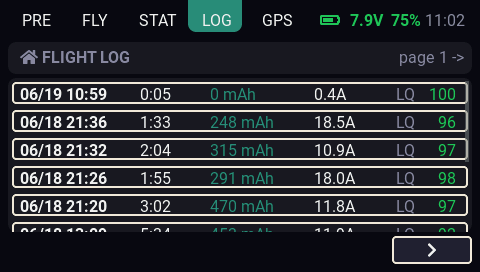
EdgeDeck has five tabs across the top of the full-screen widget.
| Tab | Use it for |
|---|---|
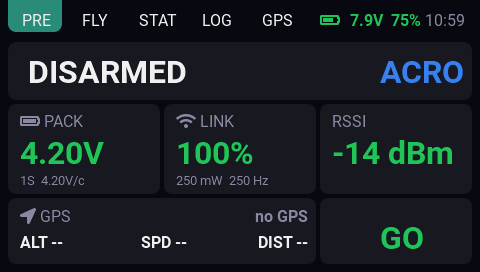
| PRE | Pre-flight checks: arm state, mode, pack voltage, link health, RSSI, GPS, and GO/CHECK readiness. |
| FLY | A quick live dashboard: timer, mode, link quality, RSSI, pack voltage, current, mAh, GPS stats, alert state, and LQ history. |
| STAT | Current pack summary: flight time, mAh, max current, min pack voltage, min LQ/RSSI, max altitude, speed, and distance. |
| LOG | Per-pack session history, newest first, with a detail view for each saved session. |
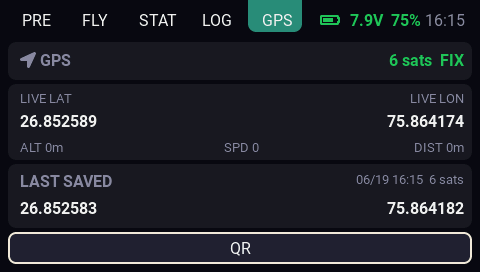
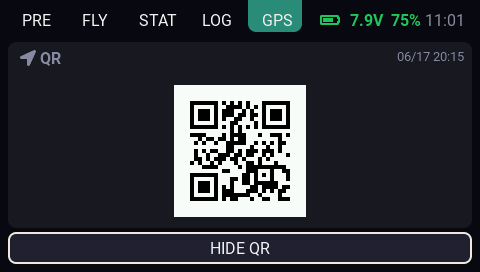
| GPS | Live and last-saved coordinates, plus a QR code for the last saved position. |
The FLY screen is useful for quick checks on the radio. The actual in-flight warning path is the sound, haptic, and optional voice alert system.
Widget Options
Open the widget settings from the radio when you want to tune EdgeDeck:
Long-press widget -> Edit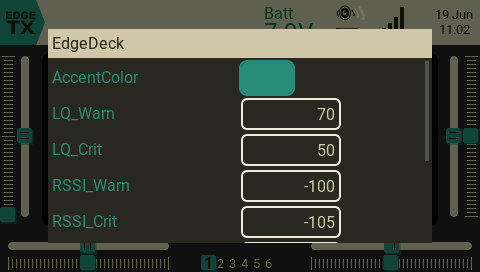
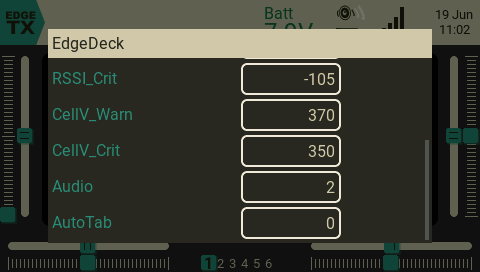
The screenshots above show where the settings live on the radio. The values shown there are an example model’s saved values; use the table below for the current defaults.
| Option | Default | What it controls |
|---|---|---|
AccentColor | theme | The active tab and highlight color. Use this to match your radio theme. |
LQ_Warn | 80 | Link quality warning point. At or below this percentage, LQ turns yellow. |
LQ_Crit | 50 | Link quality critical point. At or below this percentage, LQ turns red. |
RSSI_Warn | -98 | RSSI warning point in dBm. More negative is worse, so -100 is weaker than -90. |
RSSI_Crit | -103 | RSSI critical point in dBm. |
CellV_Warn | 350 | Pack warning voltage per cell, entered as centivolts. 350 means 3.50 V per cell. This also affects the PRE tab GO/CHECK result. |
CellV_Crit | 330 | Pack critical voltage per cell, entered as centivolts. 330 means 3.30 V per cell. |
Audio | 2 | Alert behavior: 0 silent, 1 beeps and haptic only, 2 beeps, haptic, and voice callouts. |
AutoTab | 0 | Automatic tab switching: 0 keeps tabs manual, 1 lets EdgeDeck switch to helpful tabs on key events. |
EdgeTX numeric widget options are integers, so per-cell voltages use centivolts instead of decimals. For example, enter 370 for 3.70 V and 350 for 3.50 V.
Choosing Option Values
The defaults are meant to be a sensible starting point for ExpressLRS and Betaflight:
LQ_Warn = 80matches Betaflight’s link-quality OSD alarm default.RSSI_Warn = -98andRSSI_Crit = -103are tuned around common ExpressLRS 2.4 GHz behavior.CellV_Warn = 350andCellV_Crit = 330follow Betaflight-style per-cell voltage defaults.Audio = 2gives the most feedback, including voice callouts.AutoTab = 0keeps the screen under manual control until you choose otherwise.
If alerts feel too noisy, start by lowering Audio or making your warning thresholds less sensitive. If you fly a different radio link, packet rate, battery type, or risk profile, adjust the numbers around your setup rather than treating the defaults as universal.
Alerts
Live values change color as soon as they cross the configured limits. Audible and haptic alerts wait briefly before firing, which helps avoid noise from tiny RF or voltage dips.
Alert behavior:
- Warning conditions use shorter pulses.
- Critical conditions use stronger, faster pulses.
- Multiple critical problems repeat faster than a single one.
Audio = 2also speaks link quality and pack voltage alerts.- Telemetry loss while armed can trigger an alert tone.
- The FLY tab mute button silences sound and voice alerts for 30 seconds.
EdgeDeck watches link quality, RSSI, pack voltage, TX battery, and telemetry loss while armed.
AutoTab
When AutoTab is off, tabs only change when you touch the tab buttons or use the radio controls.
When AutoTab is on, EdgeDeck can switch tabs for common moments:
- FLY when the craft arms.
- PRE when a battery connects.
- STAT after several seconds of link loss.
LOG and GPS stay manual even when AutoTab is on. That keeps private logs and coordinates from appearing unexpectedly.
Touch And Rotary Controls
- Tap PRE, FLY, STAT, LOG, or GPS to switch tabs.
- Tap MUTE on FLY to silence alerts for 30 seconds.
- Tap RESET SESSION on STAT to clear the current session timer and min/max values.
- Tap a LOG row to open session details.
- Use PREV and NEXT in LOG to move through pages.
- Use BACK TO LIST or the radio EXIT key to leave a LOG detail view.
- Use QR and HIDE QR on GPS to show or hide the QR code.
The rotary wheel can also move through LOG rows and open a selected row.
Session Logs
EdgeDeck saves one log entry per battery session. A session starts on the first arm after a battery is connected. It closes when the battery is swapped, telemetry is lost long enough, or the session is finalized after disarm. Sessions that never arm are ignored.
Saved details include:
- Flight duration.
- mAh used.
- Minimum LQ and RSSI.
- Minimum pack voltage.
- Maximum current.
- Maximum GPS altitude, speed, and distance.
- First-arm GPS latitude and longitude, when available.
- Maximum TX power.
- Packet rate.
These logs are meant for after flying. Open LOG between packs or at the end of the day to compare signal lows, packet rate, TX power, battery sag, current, and GPS-derived stats for that spot.
GPS Coordinates
The GPS tab shows live coordinates and keeps the latest valid position saved on the SD card. When coordinate telemetry is available, EdgeDeck saves the latest position about every 2 seconds.
The QR view is generated on the radio from the last saved coordinate. It does not need a web service or network connection. Opening the QR view freezes the current saved coordinate into the QR code; close and open the QR view again to rebuild it from a newer saved position.
Battery Notes
Drone pack status is based on per-cell voltage from RxBt. EdgeDeck auto-detects the cell count from pack voltage and uses your configured warning and critical values for coloring and alerts.
The radio TX battery display follows the radio’s own battery settings when EdgeTX exposes them. Set the correct min, max, and warning values in Radio Settings -> Battery range so the TX battery percentage and warning make sense.
Troubleshooting
| Problem | What to check |
|---|---|
| Blank screen or EdgeTX warning | Make sure the radio is on EdgeTX 2.11 or newer. |
Values show -- or 0 | Power the model, check the receiver link, then discover telemetry sensors. |
| Arm state is wrong | Enable native CRSF telemetry in Betaflight and rediscover the FM sensor. |
| Mode label is missing | The FM sensor is probably not present. The widget can still run, but mode display is limited. |
| GPS fields are empty | Confirm GPS telemetry is present and sensors such as GPS, Sats, Alt, GSpd, and Dist exist. |
| QR does not build | Confirm EdgeDeck/qrgen.lua is installed beside EdgeDeck/main.lua, then reload the widget. |
| TX battery percentage or warning is wrong | Check Radio Settings -> Battery range on the radio. |
| Alerts are too noisy | Set Audio to 0 or 1, adjust thresholds, or use MUTE during a flight. |
| Full dashboard does not appear | Place the widget in a full-screen zone. Smaller zones use compact mode. |
License
EdgeDeck is released under the MIT License.